How to get notified when a web page changes
Some pages have no feed and no “notify me” button: an appointment calendar, a tender list, a release-notes page. This is how to have a Windows PC check one for you and tell you what changed.
What you need
- A PC with Windows 10 / 11 (64-bit).
- A page anyone can open without signing in.
- Deskwatcher. It is free for 3 pages, with no account and no time limit.
One thing to know before you start: Deskwatcher checks from your PC, so it checks only while the PC is on. Checks it missed run as soon as the PC is back.
Step 1. Paste the address
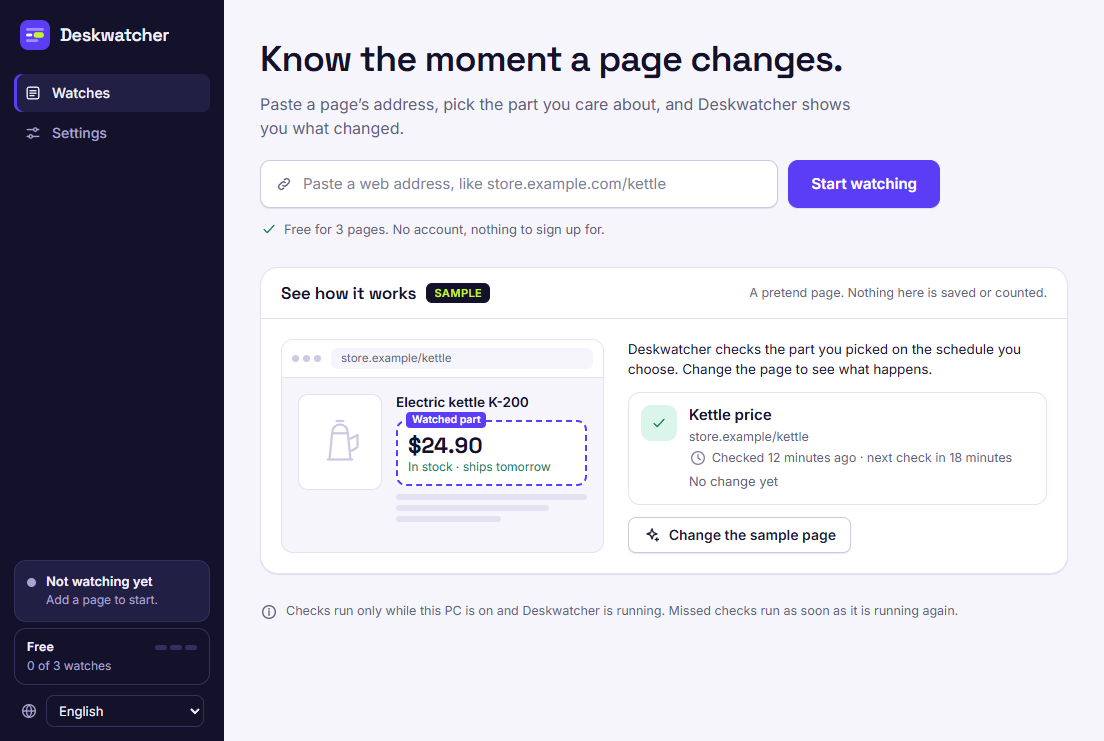
Install Deskwatcher and open it. Paste the address of the page into the field and choose Start watching. If you would rather see how it behaves first, the sample on the same screen lets you change a pretend page and watch what happens.
Step 2. Click the part you care about
Most pages change all the time in places you do not care about: a clock, a banner, a list of “latest” links. So Deskwatcher asks which part to watch. It opens the page in a window, and you click the date, the price or the paragraph. Everything outside that part is ignored.
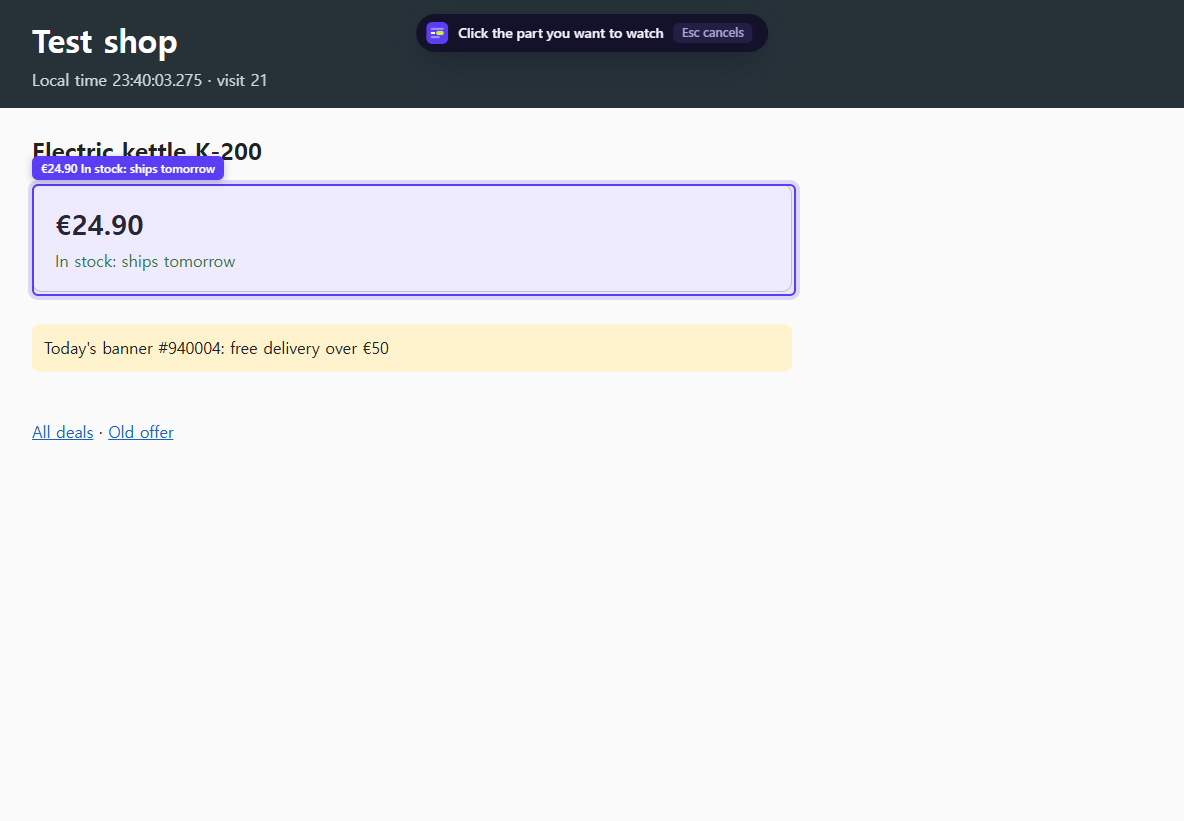
If the whole page is what you care about, choose The whole page instead.
Step 3. Check what it reads, and choose how often
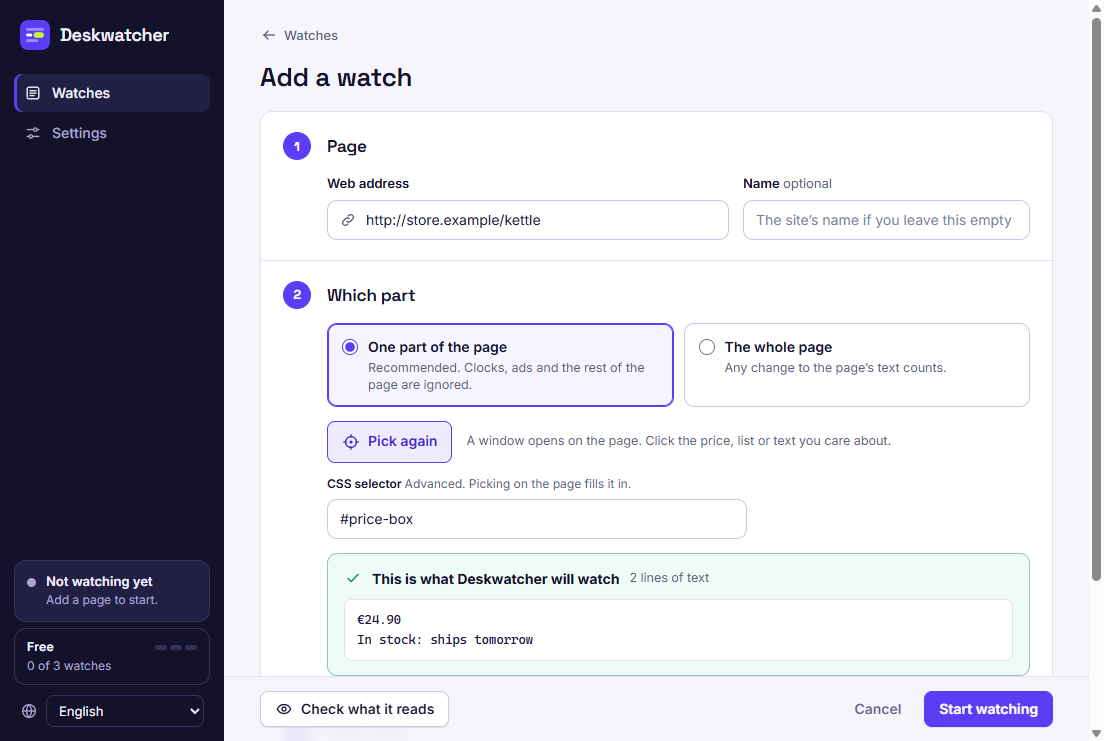
Before saving, Deskwatcher shows the exact text it read from the part you picked. If that is not what you meant, pick again. Then choose how often to check, from every 5 minutes to once a day. Please pick an interval the site would be comfortable with: a page that changes once a week does not need a visit every 5 minutes.
Step 4. Let it run
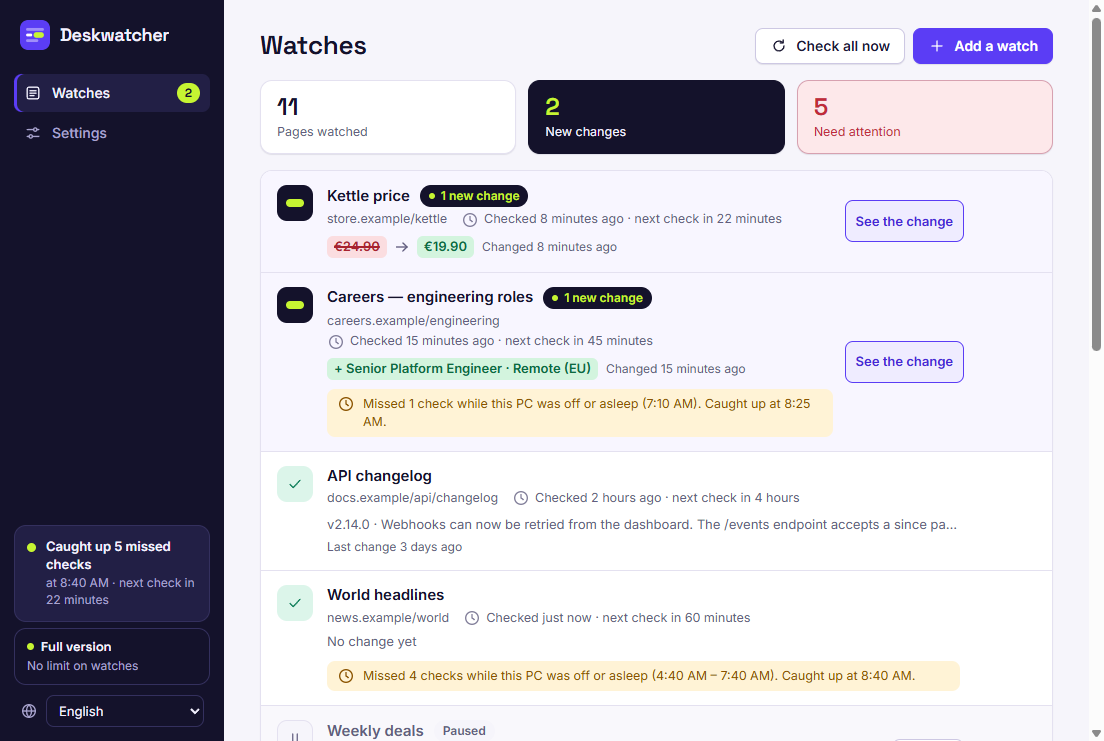
Close the window. Deskwatcher stays in the system tray and starts with Windows. Each watch in the list shows when it last checked and when it checks next.
Step 5. See what changed
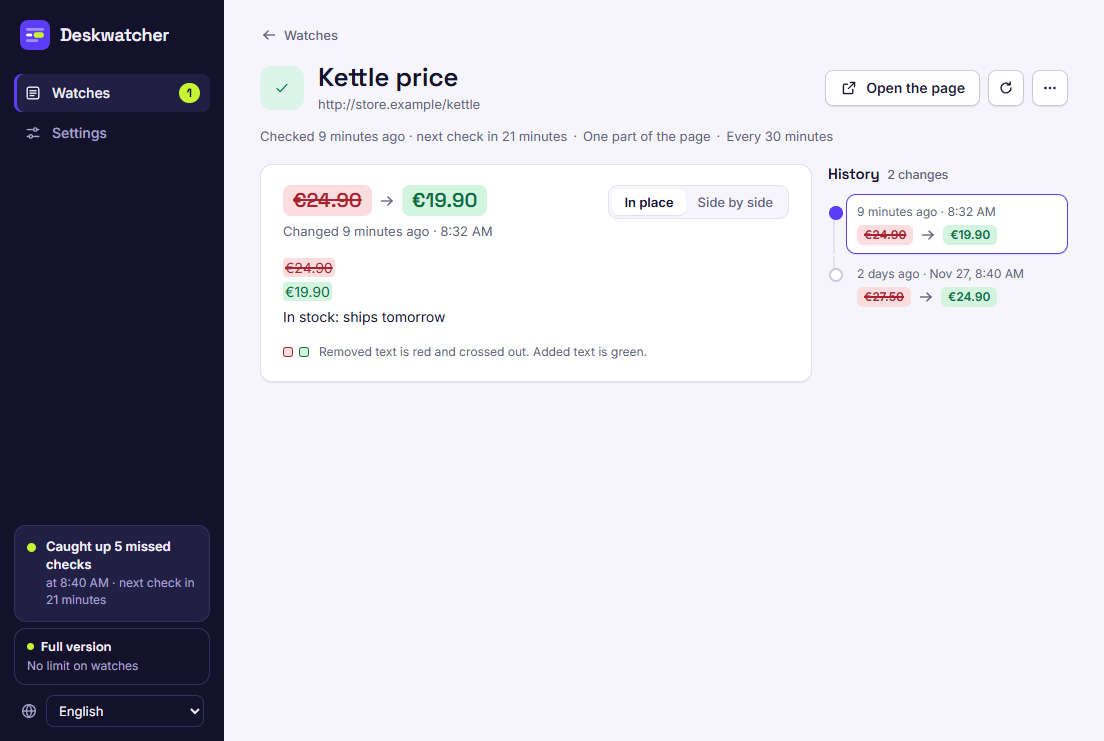
When the part changes, a Windows notification says so. For a short change it shows the old and new text right there. Open it to see the change word by word: removed words in red, added words in green, and the earlier changes in a history on the right.
When something goes wrong
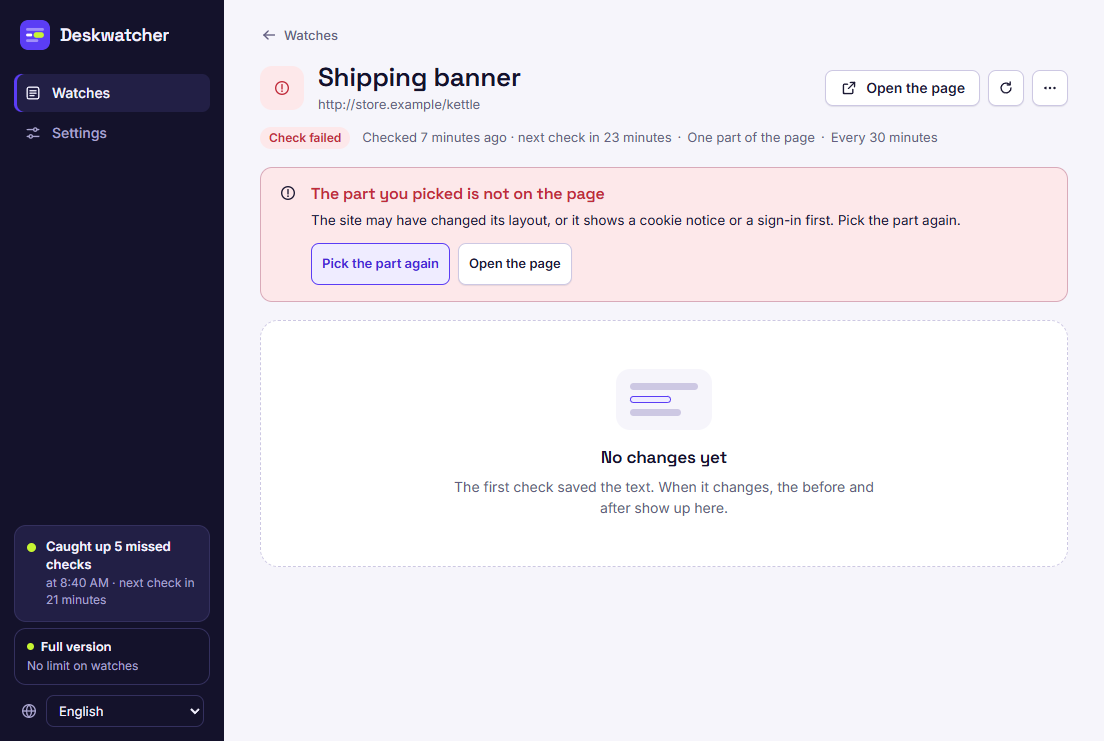
Sites get redesigned. If the part you picked is no longer on the page, Deskwatcher does not report “no change”. It marks the watch as failed and sends a notification, and you pick the part again.
Sending the alert somewhere else
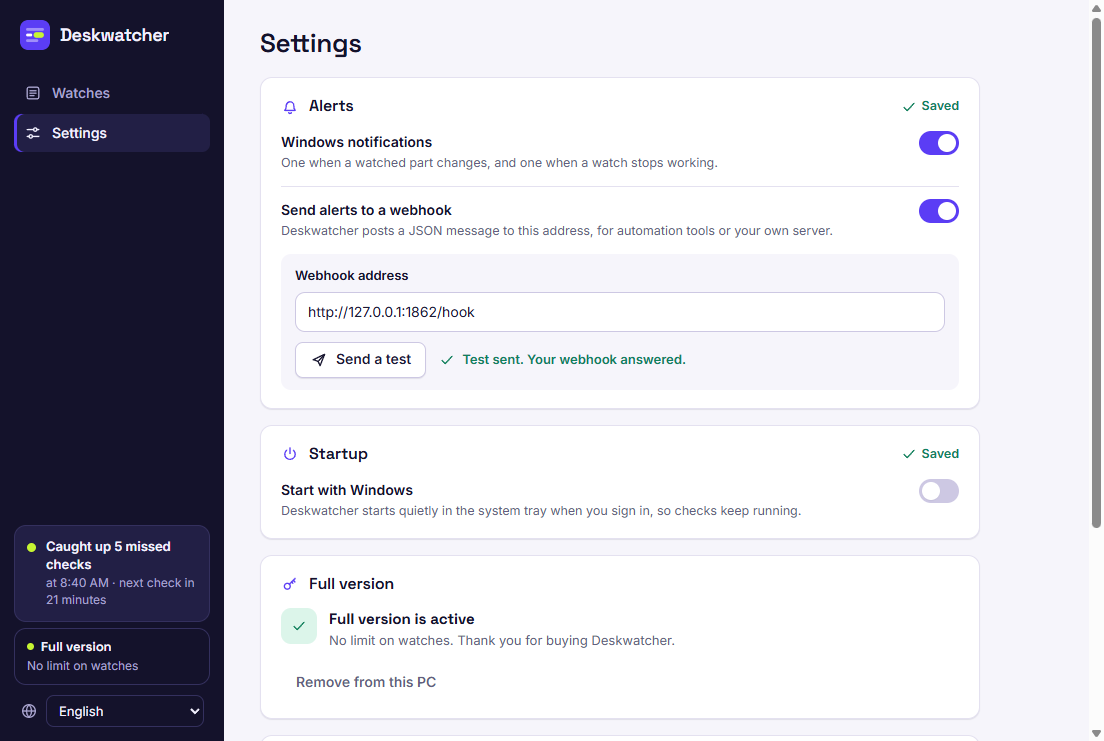
Deskwatcher can also post each change to a webhook address as a JSON message with the watch, the old text, the new text and a short summary. Automation tools such as n8n, Make or Zapier can take it from there, for example into a chat channel. Discord and Slack expect their own message format, so one of those tools has to sit in between.
What this does not cover
- Pages behind a sign-in. Deskwatcher stores no passwords and fills in no forms.
- Sites that block automated visits. It does not get around a CAPTCHA or a bot check. That watch shows an error.
- Images and files. It compares text only.
- Checks while the PC is off. For that you need a cloud service. Our comparison of ways to monitor a page lists some.